KAPWING

Subtitle workflow

Make readable clips with the kapwing subtitle generator

The kapwing subtitle generator is a useful starting point for a captioning workflow: draft the spoken words, correct the timing, and review the result in the video. This guide explains those checks without assuming that an automatic transcript is ready to publish.

Opens a separate video service

How it works

Three passes from speech to readable text

Whether you start with an automatic draft or type every line, treat transcription, timing, and playback as separate jobs.

Capture the spoken words

Start with audio that is as clear as possible. Transcribe the dialogue, then compare the draft against the recording. In a Kapwing-style subtitle workflow, names, technical terms, and overlapping voices deserve an extra listen before you move on.

Set readable timing

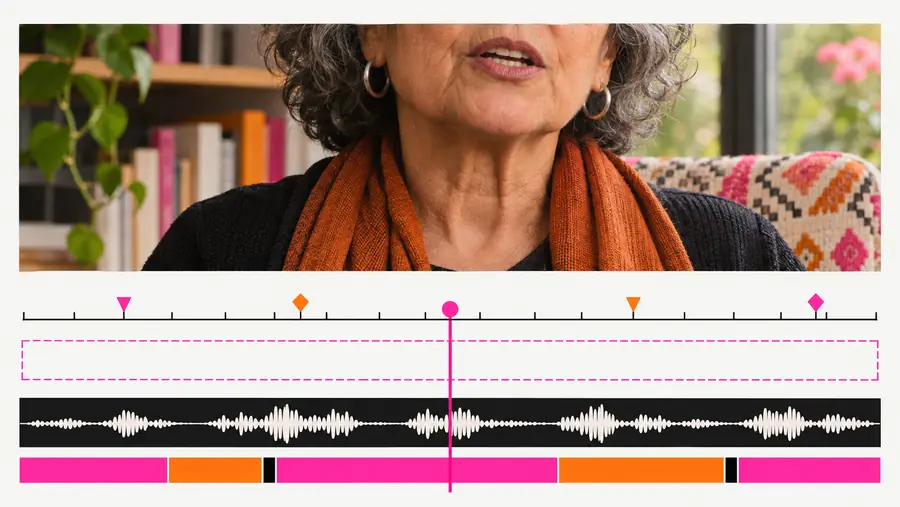
Place each subtitle where its speech begins and ends. Split long sentences at natural pauses rather than squeezing a whole paragraph onto the screen; leave enough time for a viewer to finish reading each line.

Review the actual video

Watch with sound on to check accuracy, then mute it to test whether the subtitles make sense by themselves. Check the first and last frames, speaker changes, and whether text covers important visuals.
Method comparison

Automatic draft versus manual transcription

Neither method removes the need for a final watch-through. Choose a starting method based on the audio, then judge the subtitle track by what viewers actually see.

Automatic draft Manual transcription
1

Starting point

Automatic draft

Speech recognition produces text to review.

Manual transcription

A person listens and writes the text.

2

Clear, single speaker

Automatic draft

Can provide a workable first pass.

Manual transcription

Still requires listening and typing.

3

Names and jargon

Automatic draft

Verify every unfamiliar term against the audio.

Manual transcription

Check spelling against a trusted source.

4

Overlapping voices

Automatic draft

May merge or misattribute speech.

Manual transcription

Allows deliberate speaker identification, if audible.

5

Timing

Automatic draft

Generated boundaries may need adjustment.

Manual transcription

Each segment must be placed and checked.

6

Final quality check

Automatic draft

Watch the whole video after corrections.

Manual transcription

Watch the whole video after corrections.

Reality checks

Limits and edges worth checking

A subtitle draft cannot recover words that are missing from the recording or guarantee that every export matches your delivery needs.

Unclear audio stays uncertain

Music, noise, accents, and several people speaking at once can make individual words difficult to identify. Do not turn a plausible guess into a confident subtitle.

WorkaroundReplay the segment, consult the speaker when possible, and mark genuinely inaudible speech according to your project's style.

Timing is not just transcription

Correct words can still be difficult to read if lines appear late, disappear early, or cover a face or demonstration.

WorkaroundReview the exported video at normal speed and adjust line breaks, duration, and placement.

Output options require verification

This guide cannot confirm which subtitle files, embedded text options, languages, or account conditions are available through the separate service opened by the action buttons.

WorkaroundCheck that service's current controls and export details before committing to a delivery format.

Review example

The difference a playback check makes

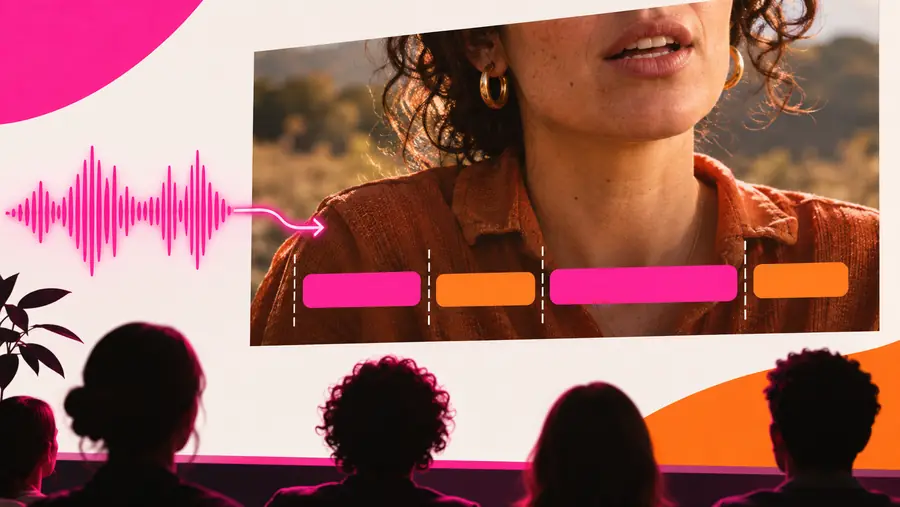
Treat these images as workflow illustrations, not as proof of a particular tool's output or a guaranteed transformation.

Draft stage

Illustration of a video editing interface before a subtitle review
Illustration associated with reviewing subtitles on a video
Review stage

A useful before-and-after test is practical: play the draft, note any wrong words or crowded lines, make corrections, and replay the finished clip with sound muted.

Next step

Give the finished video a final read

Plan a video viewers can follow

Bring a clear description of your project to the linked video service, then check its available tools before you begin. If you are adding subtitles, keep the source recording close: it is the reference for every word, pause, and speaker change.

  • Check words against the recording
  • Review timing in the finished clip
  • Verify output options before sharing

Common questions

Subtitle generator questions

A subtitle generator generally turns spoken audio into a timed text draft. That draft is a starting point, not a substitute for checking the words and timing against the video.

Usually, yes. Review names, unfamiliar terms, punctuation, speaker changes, and any section with music or overlapping speech. Play the full video after editing so that corrections make sense in context.

The terms are often used interchangeably, but captions may also describe meaningful sounds and identify speakers. Decide which information your audience needs before preparing the text.

This page cannot verify that service's current export formats or account requirements. Check its available options before starting if a separate subtitle file is essential to your project.

Watch the video at normal speed with the sound muted. Look for lines that change too quickly, obscure important visuals, or leave the viewer unsure who is speaking.

Create video
Create video